

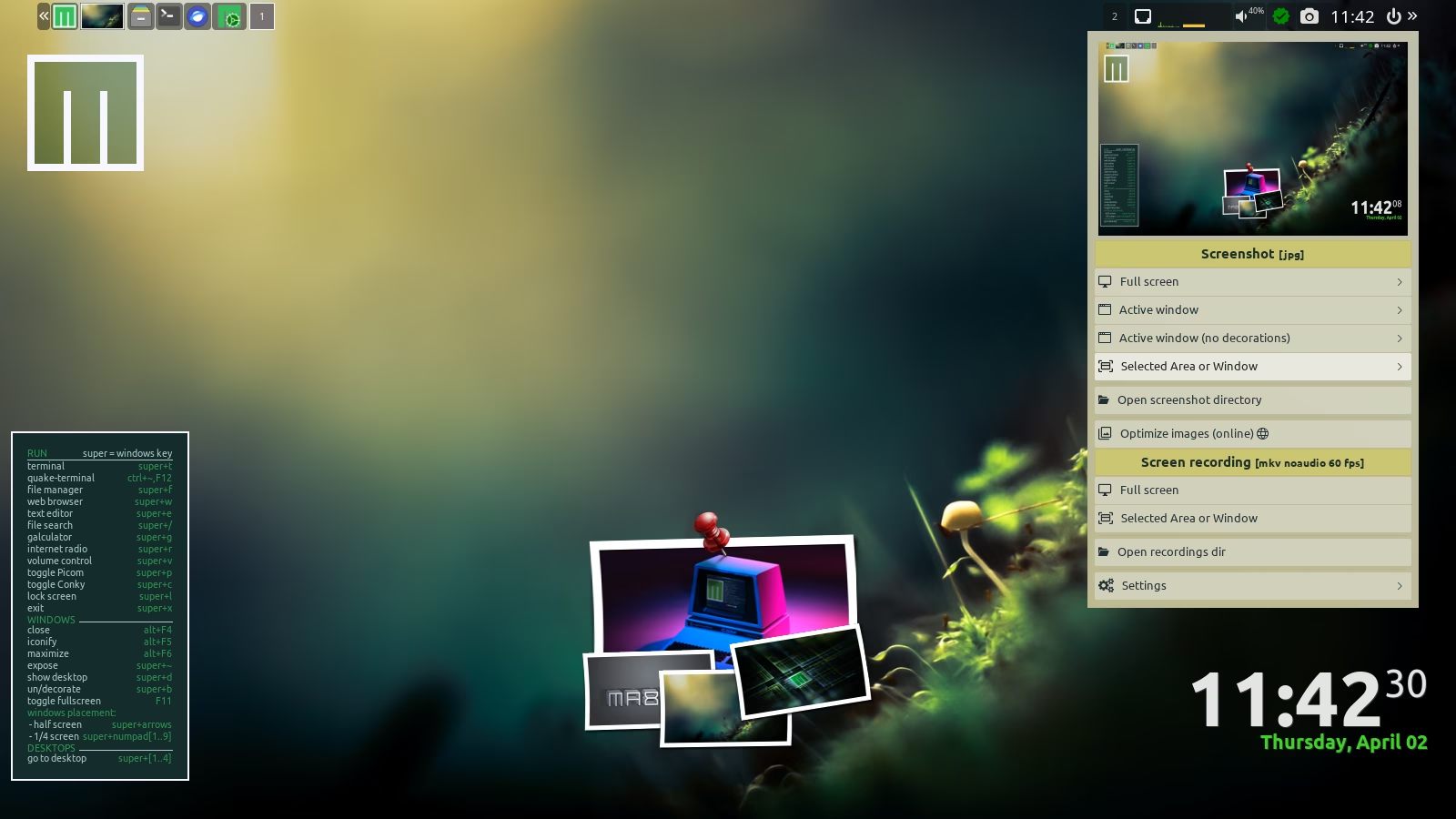
Mabox provides a simple built-in screenshot and desktop recording tool.
Built as a dynamic menu, it is a graphical overlay for the well-known and popular command line tools: scrot, maim and ffmpeg (for recording).
Launched with the W - PrtScr keyboard shortcut or by right-clicking on the icon on the panel, next to the clock.
Screenshot tool
Options:
- Full screen
- Active Window
- Active Window without decorations
- Selected area
A really handy feature is taking a delayed screenshot. You can choose 5, 10, or 15 seconds.
It makes it easy to capture things like open menus in your screenshot.
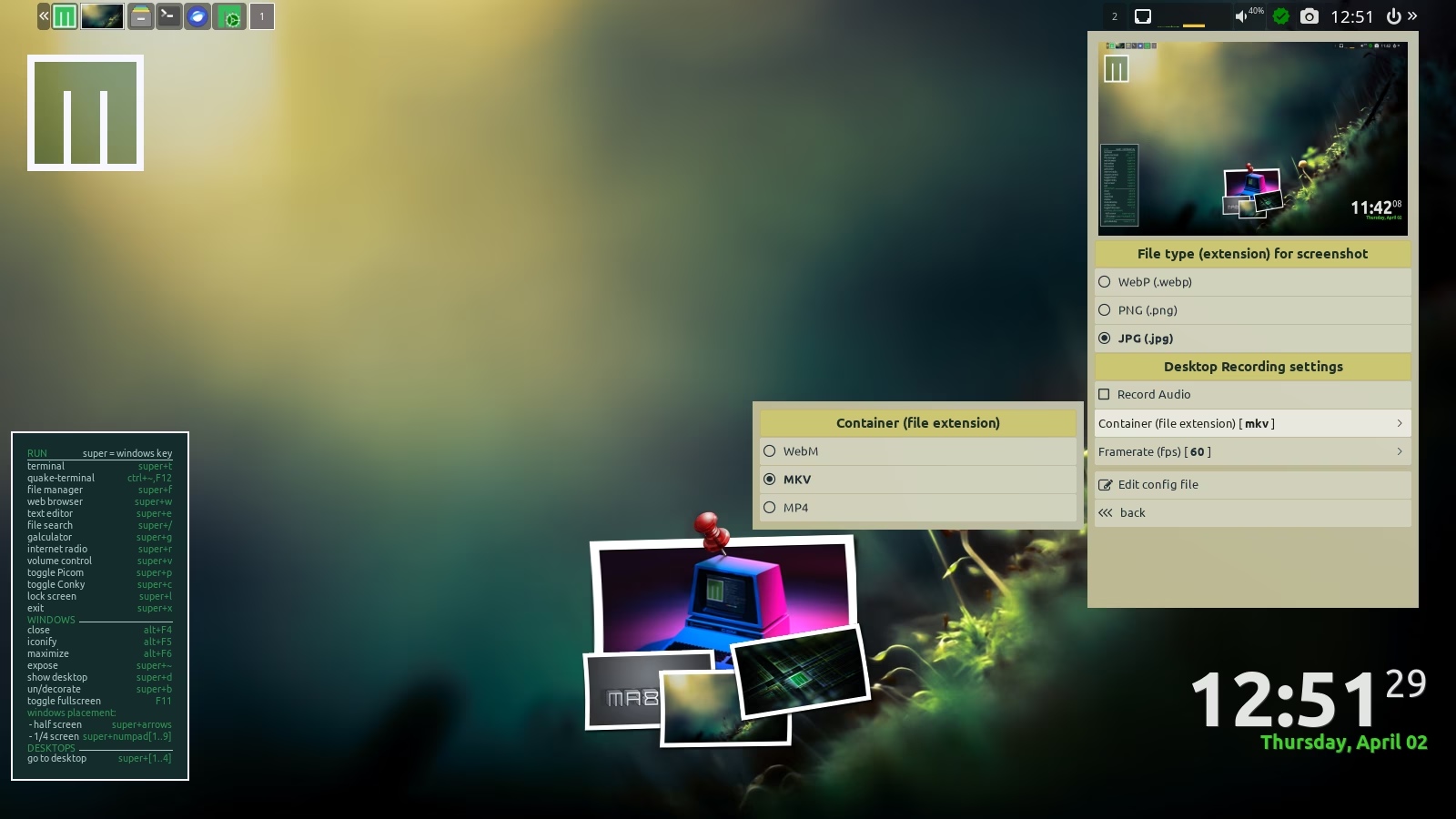
Image formats
- WebP
- PNG
- JPG
Desktop recorder
Full screen or selected area/window
To stop recording – click icon in system tray.
A directory with recordings will be opened.
Available options:
- with audio / no audio
- file type: WebM, MKV or MP4
- frame rate (FPS): 60, 30, 25, 24, 15, 10
Settings
You can tweak the settings from the Settings submenu.
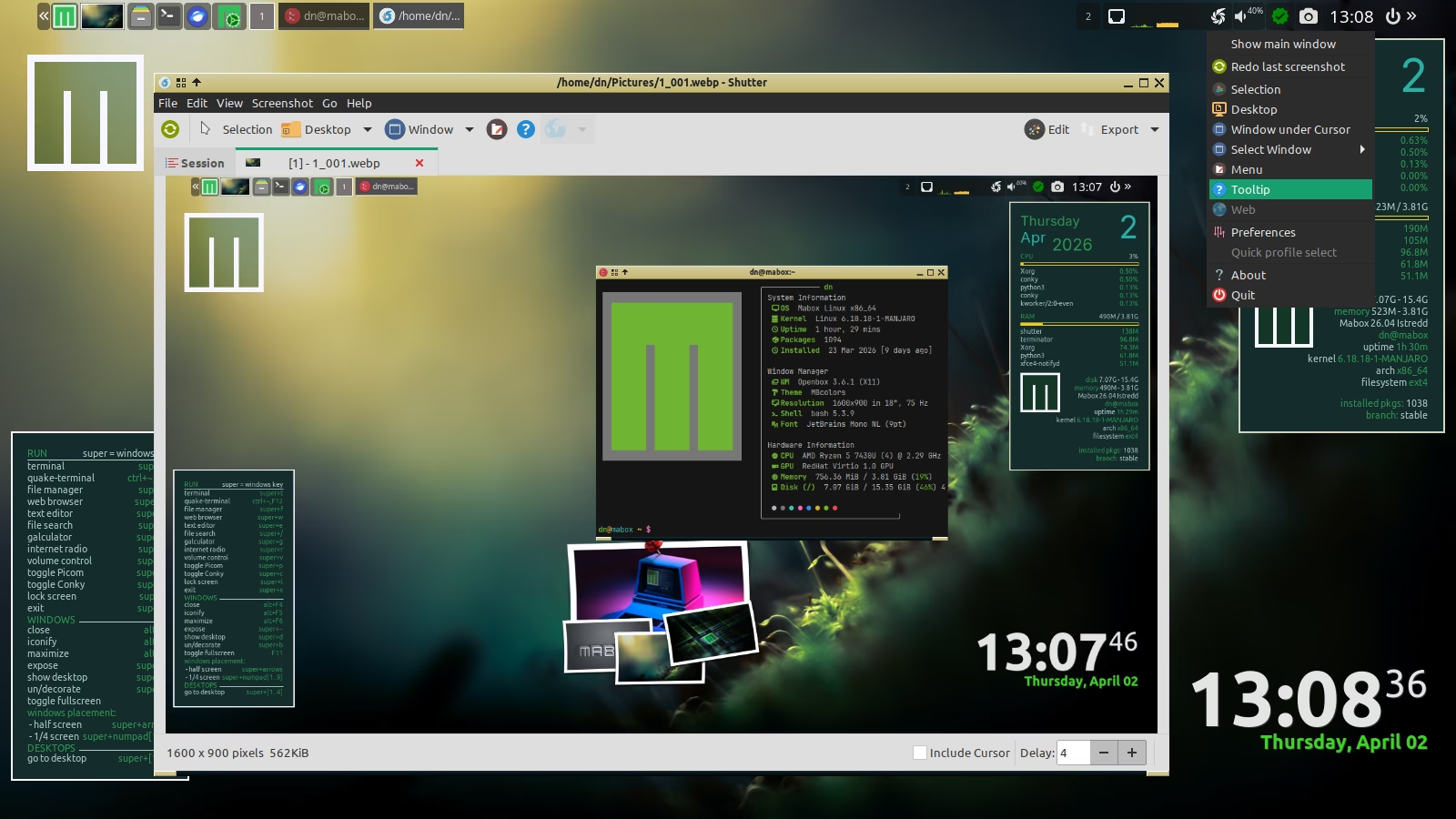
Alternatives: Flameshot or Shutter
If you need more advanced screenshot tools, try Flameshot or Shutter.
Both offer advanced image‑editing features such as:
- adding text, arrows, rectangles, ellipses
- censoring / pixelating sensitive data
- auto‑incrementing shapes
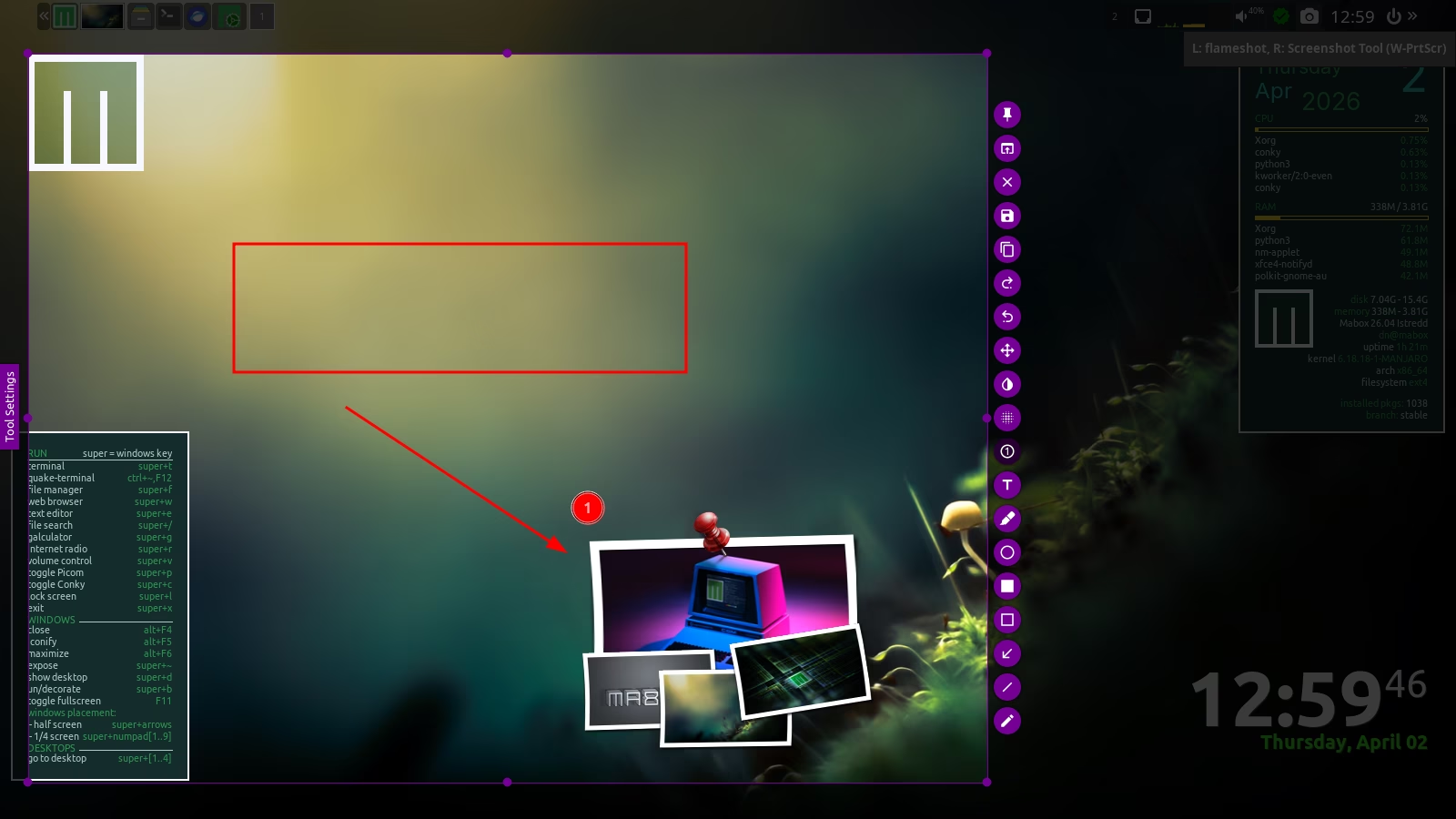
Flameshot is installed by default and available via the PrtScr key (and by left‑clicking the icon next to the clock on the panel).
You can install Shutter with the command:
yay -S shutterFor desktop recording, you can try VokoscreenNG.
yay -S vokoscreenShare your desktop with community
Make sure to share a screenshot of your Mabox on our forum.
You can shrink or optimize it at squoosh.app.
I usually take my screenshots as PNGs and then convert them to the modern, lightweight AVIF format.