
The Mabox desktop offers several features not found in other environments. Therefore, I strongly encourage you to read this brief introduction to get familiar with Mabox quickly.
It’s best to try out the features described here right away while you read.
Menu
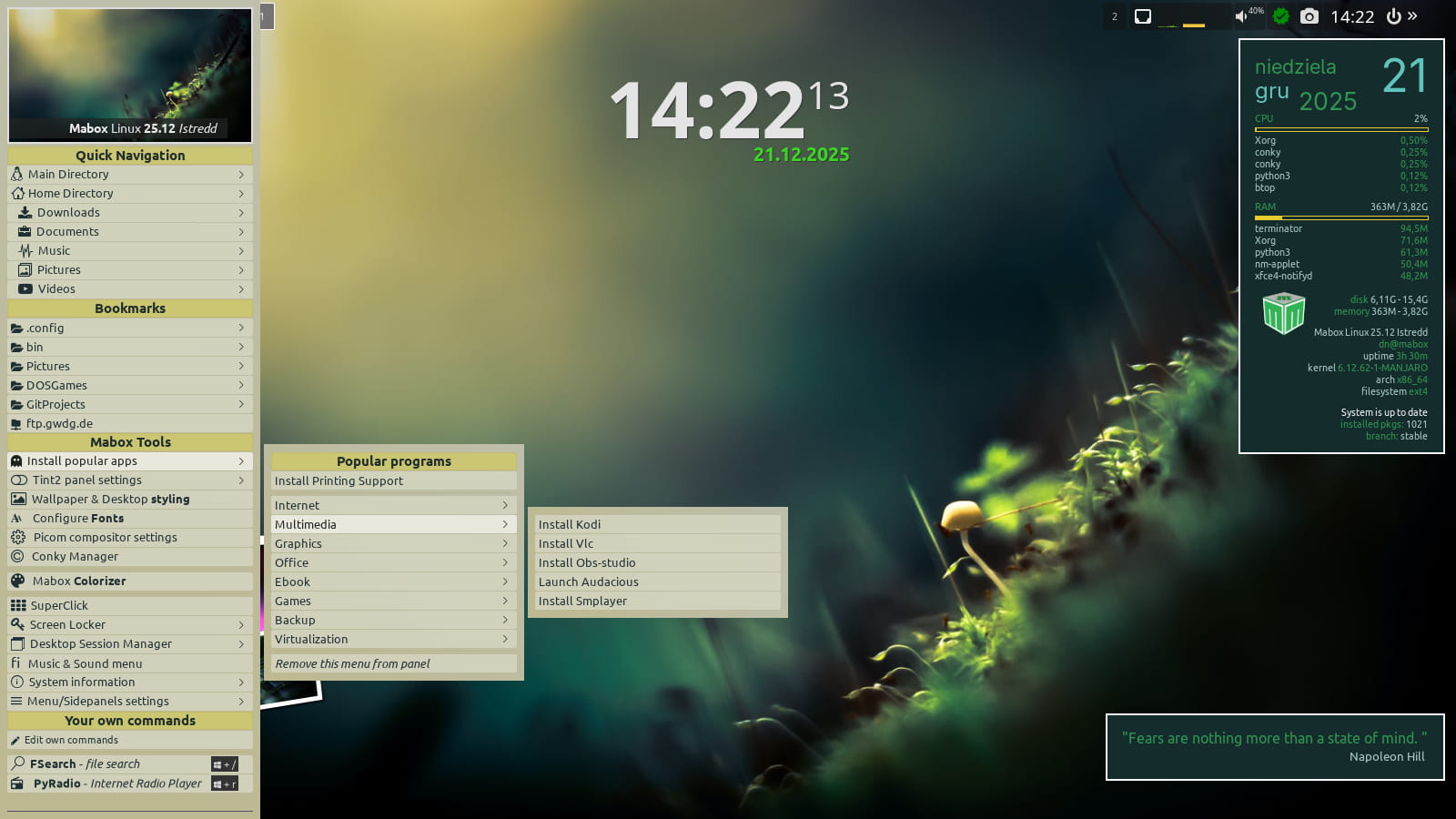
The main menu can be accessed by right-clicking on the desktop, clicking the icon on the panel (logo) or using W (the super/windows key).
The menu is searchable
Try…
W (to show menu) -> then type: “auto” … menu is filtered, showing only three elements
in this case, related to autostart.
To clear the filter, hit Esc
To close the menu, hit Esc or click outside the menu.
Desktop actions
There are no icons on the desktop… well, it’s Openbox.
However, the desktop offers plenty of conveniences.
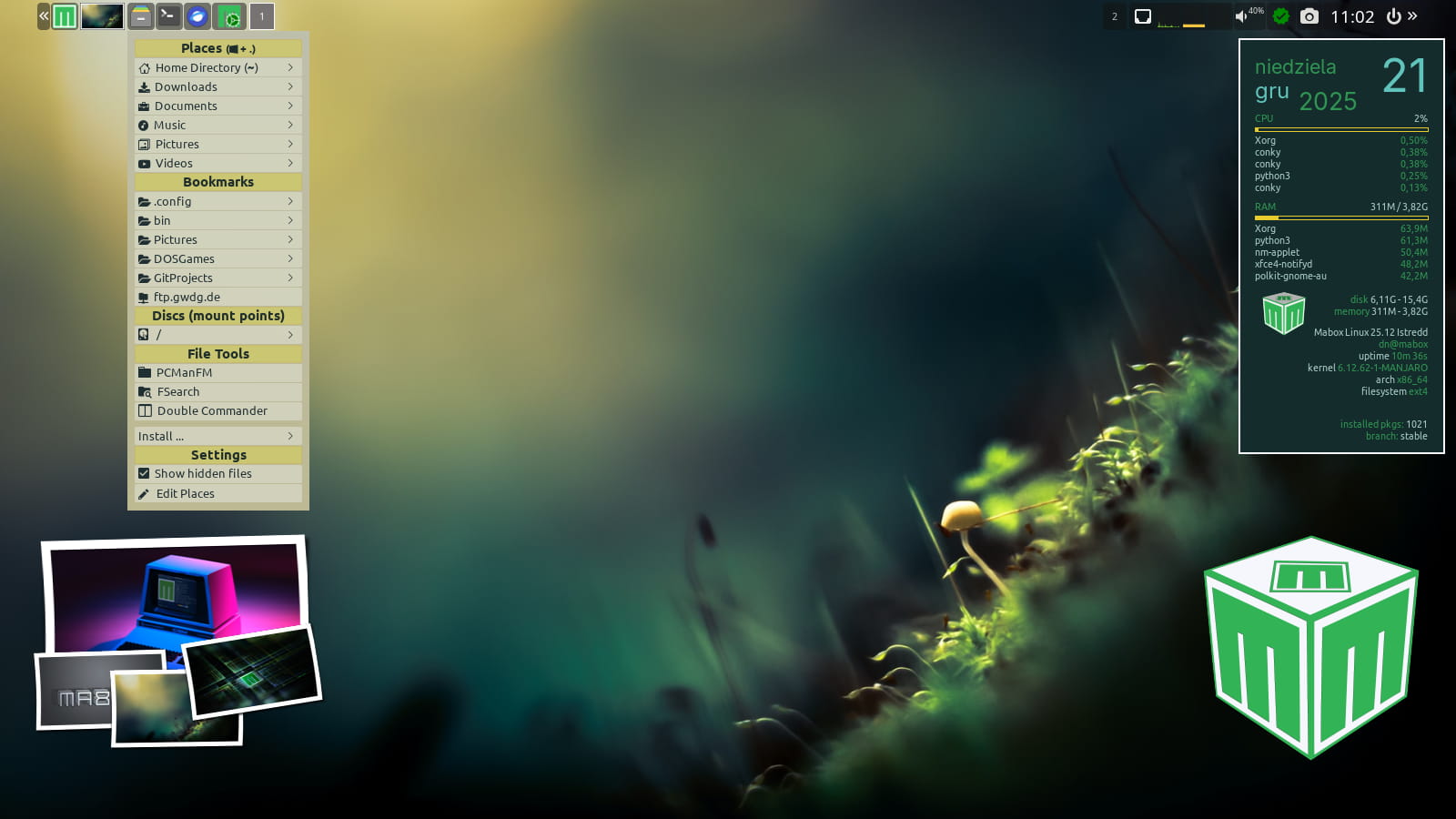
Click on the left edge of the screen… the left sidebar will appear. Actions are defined for each corner and each edge of the desktop.
For edges:
- Left – left sidepanel
- Right – right sidepanel
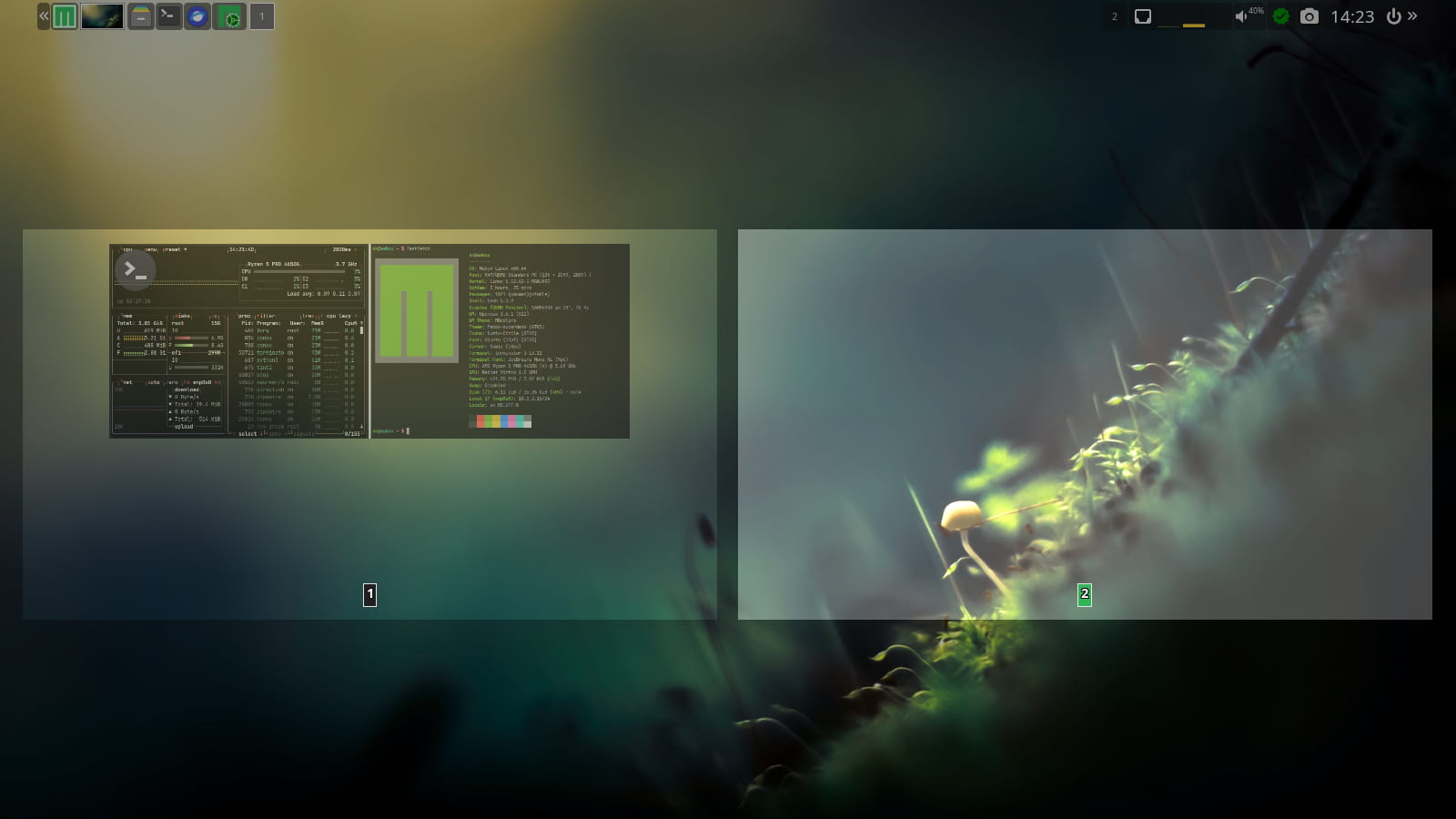
- Bottom – switch desktops (skippy-xd)
- Top – Window & Desktops menu
For screen corners:
- Top-Left – toggle ShowDesktop, also bound to W-d
- Top-Right – Music and Sound menu
- Bottom-Left – Window switcher (skippy-xd)
- Bottom-Right – Logout menu (also W-x)
This thing is called AreaClick and you can configure or disable it from the Windows & Desktops menu, accessible by clicking on the top edge of the screen.
Apart from being invoked by left-clicking the mouse, all of the above actions are available from the keyboard.
Super + Alt and the number on the Numpad.
More info: AreaClick – screen edge/corner command launcher
Panel
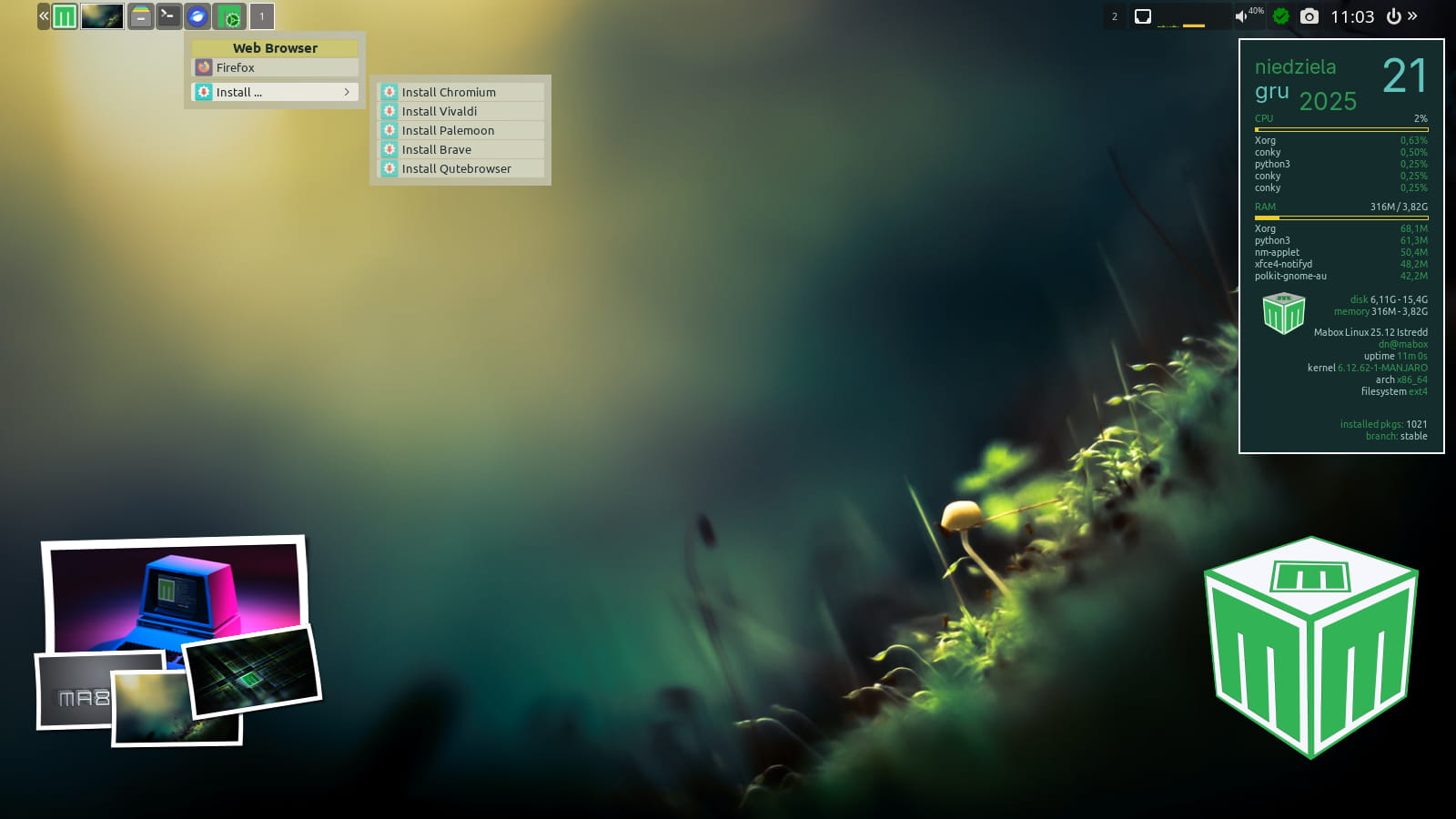
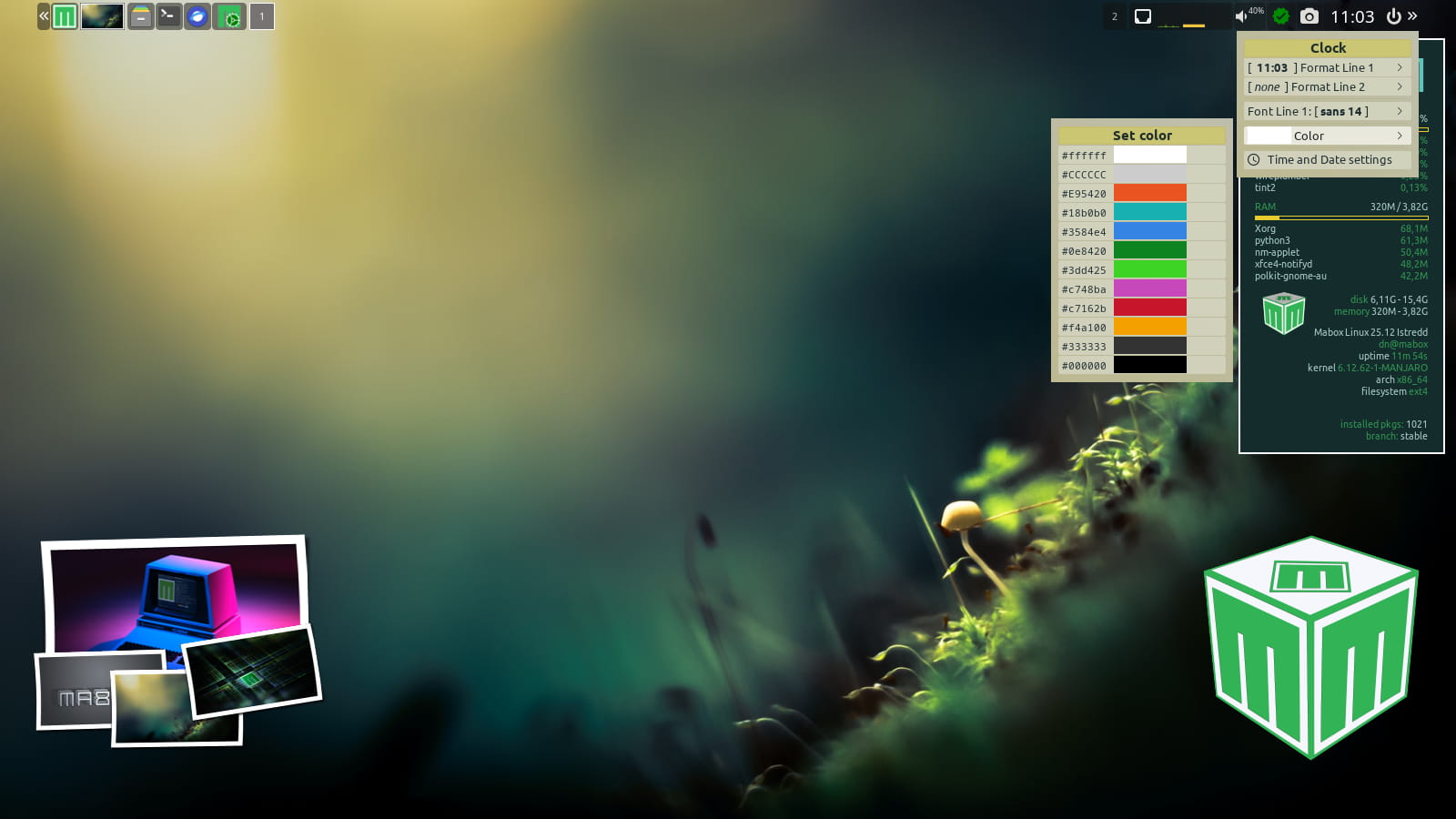
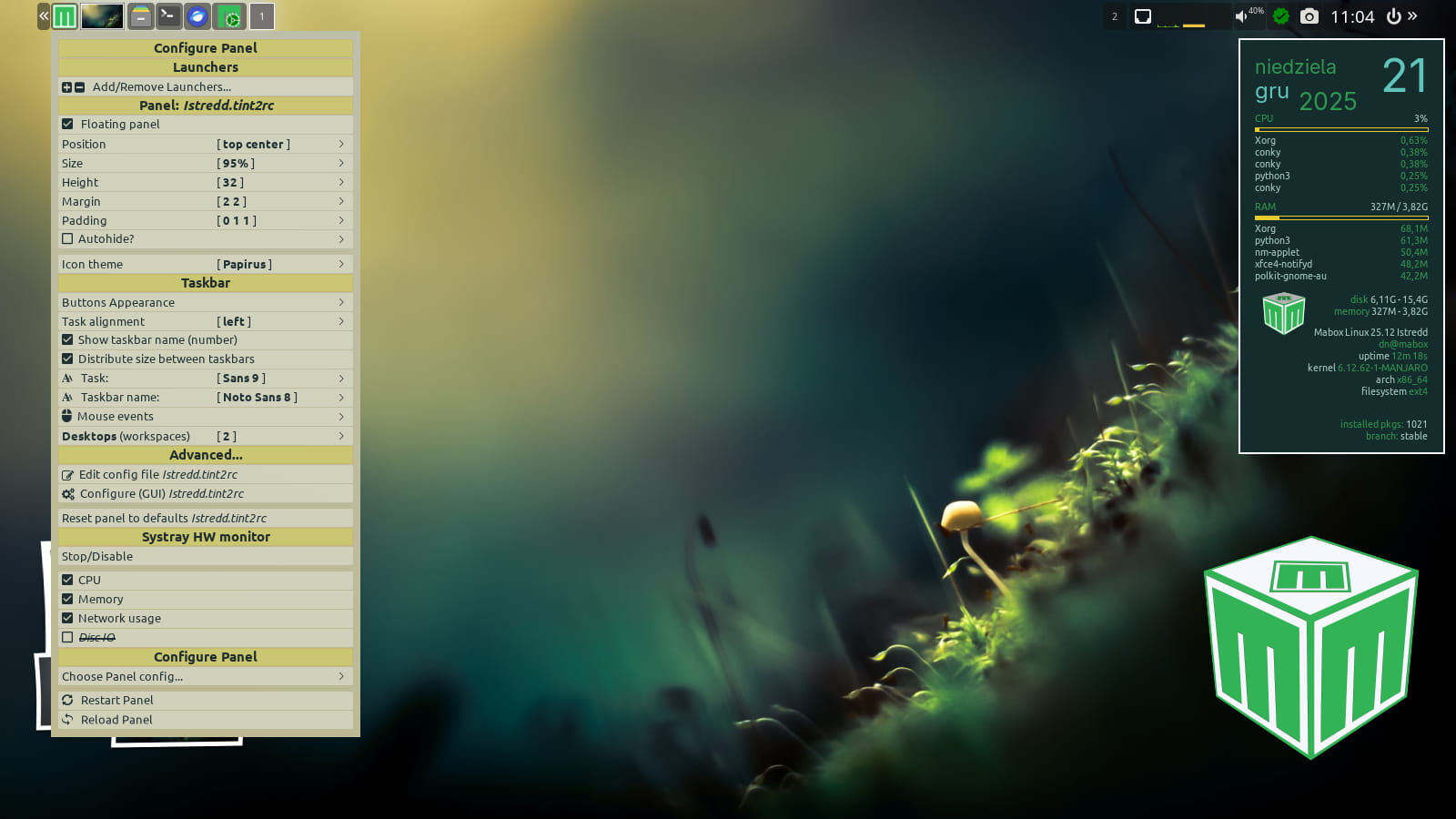
At the top is a panel. This isn’t just any panel, it’s Tint2, offering interesting options, like actions triggered by right-clicking or the mouse wheel. Check out which elements of the panel offer these options 🙂
For example, right-clicking the Mabox icon gives you quick access to configuring certain aspects of the panel’s behavior. You’re sure to find something interesting under other icons as well.
Status Icon/Update Notifier
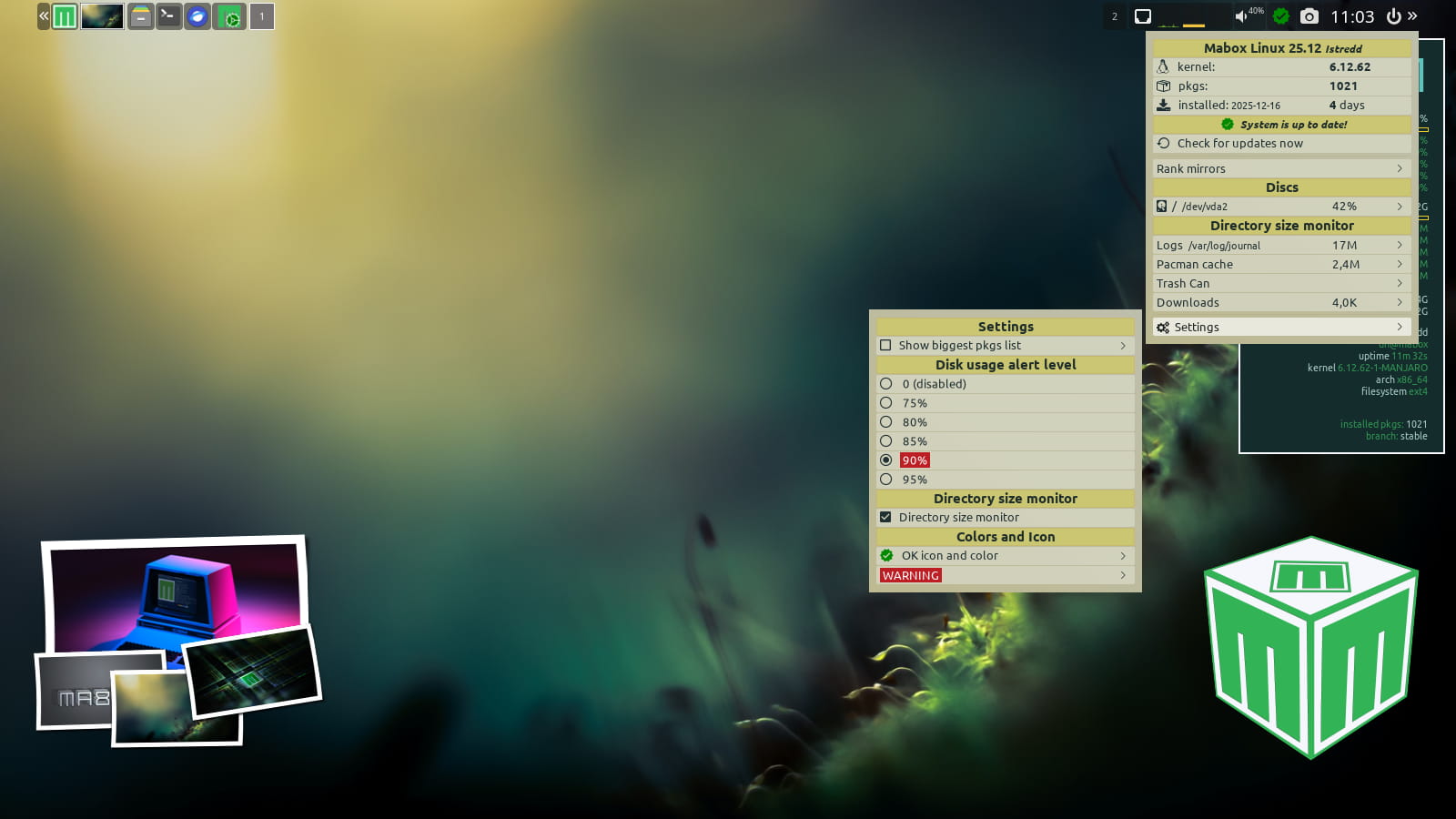
The icon before the clock is very useful. It will notify you of available updates and when disk usage exceeds a set threshold. Click it to discover and configure several additional features.
Conky on steroids
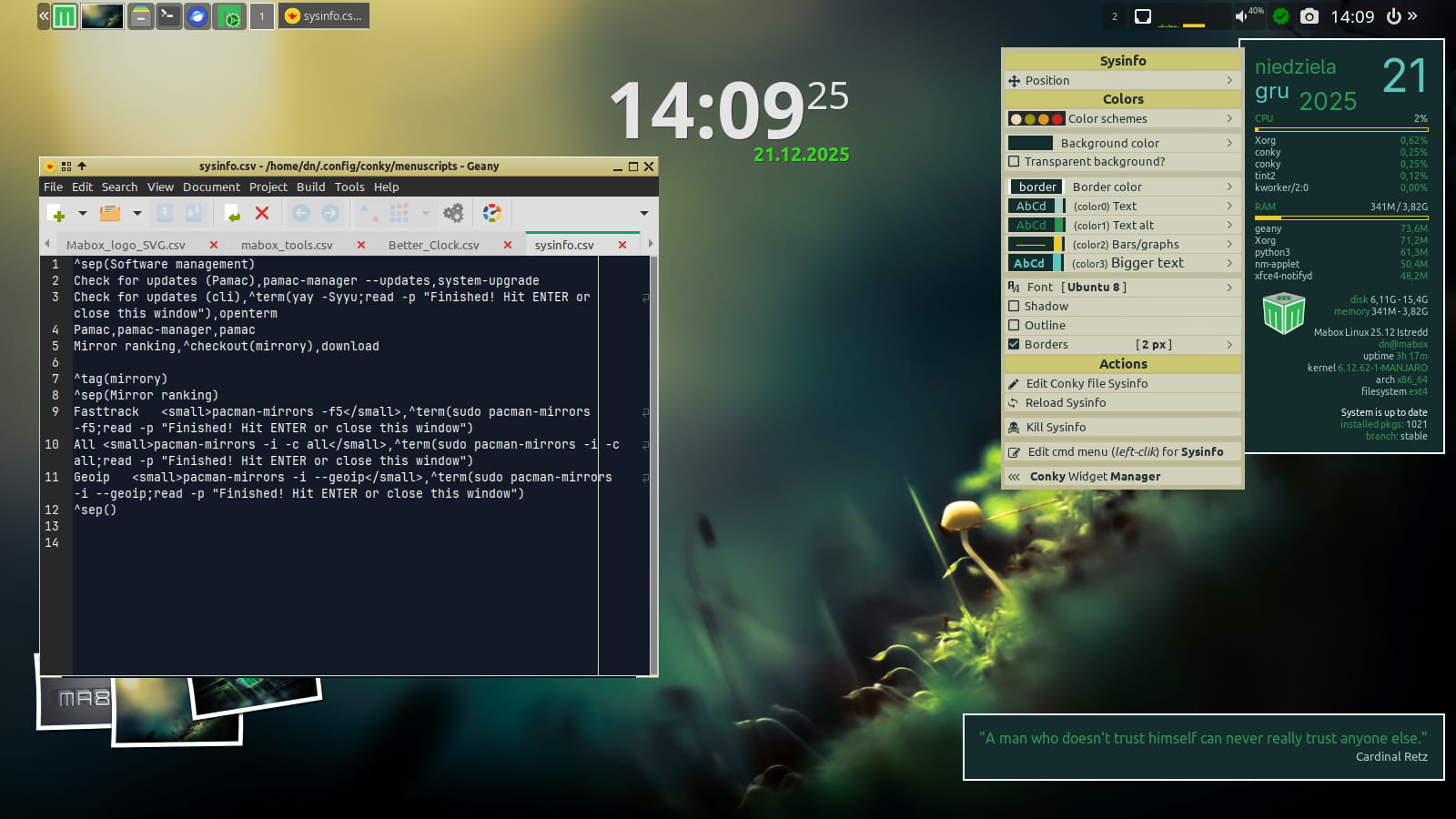
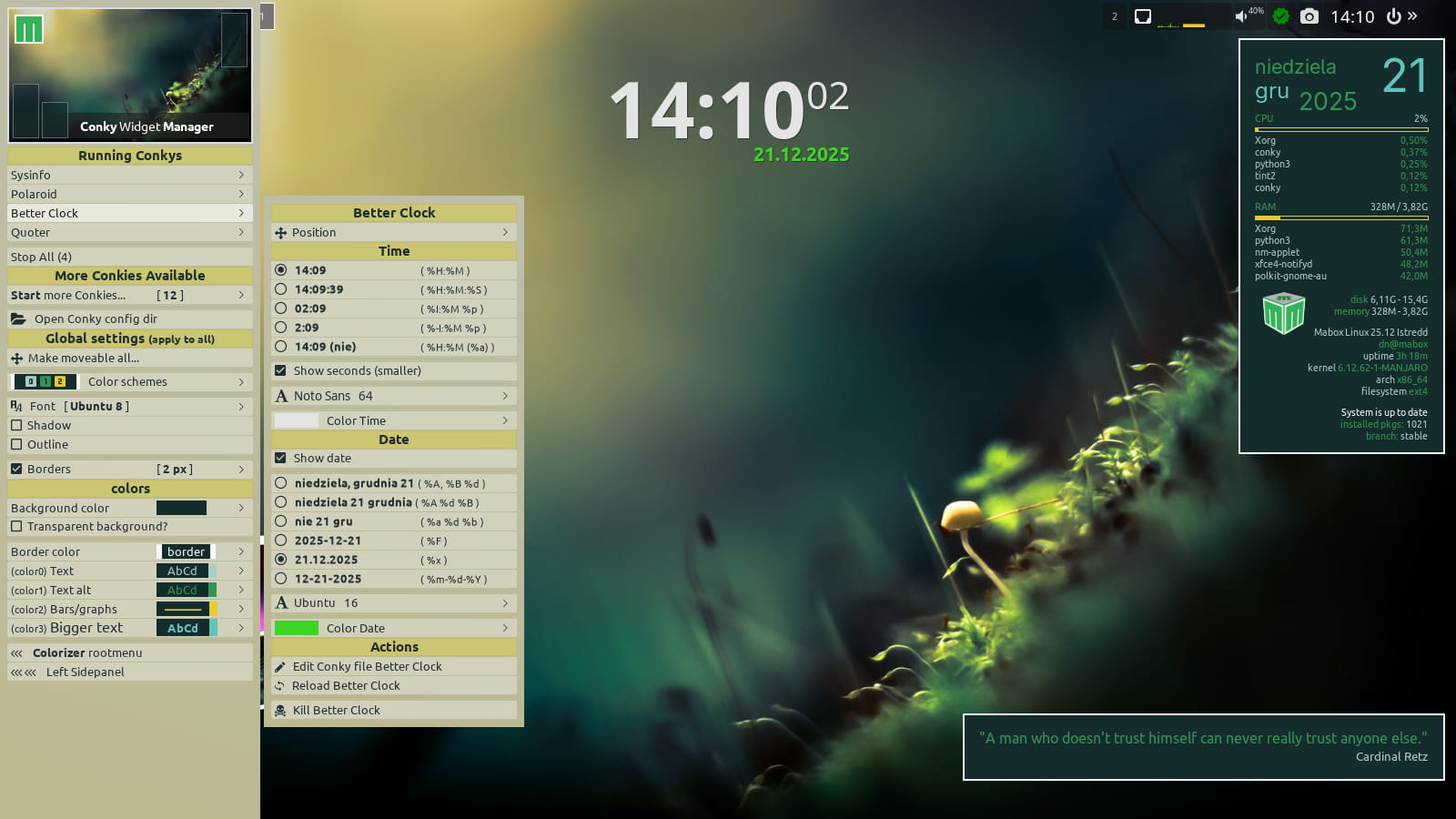
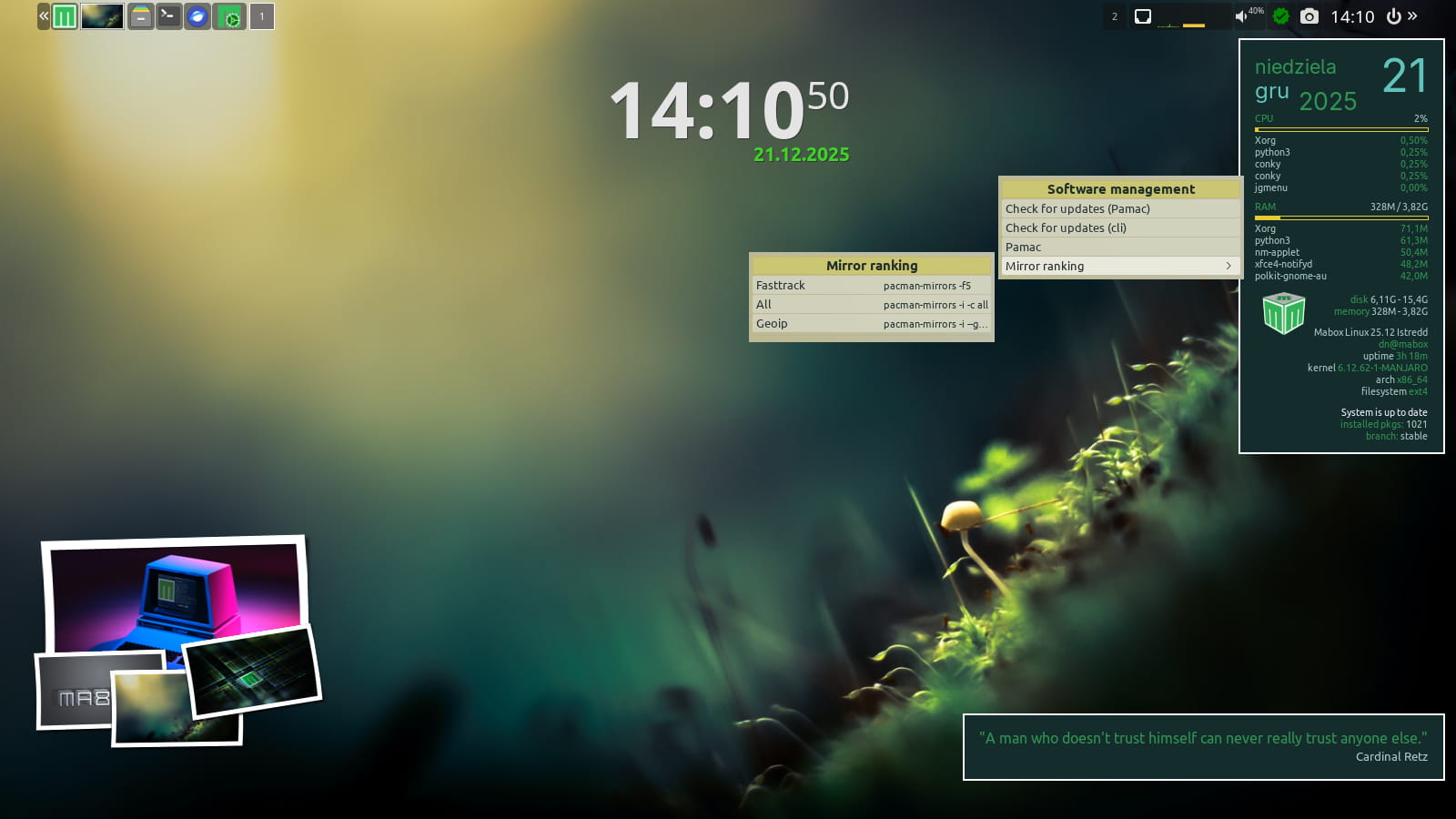
In Mabox, Conky offers unique features: a context menu (right-click) to control each Conky, and the ability to define a launcher (left-click action).
You can easily assign any command or multiple commands to the left-click on Conky.
If a single command is defined, it will be launched immediately after left-clicking on Conky. If you define multiple commands, a menu of available commands will be displayed.
Mabox Terminal
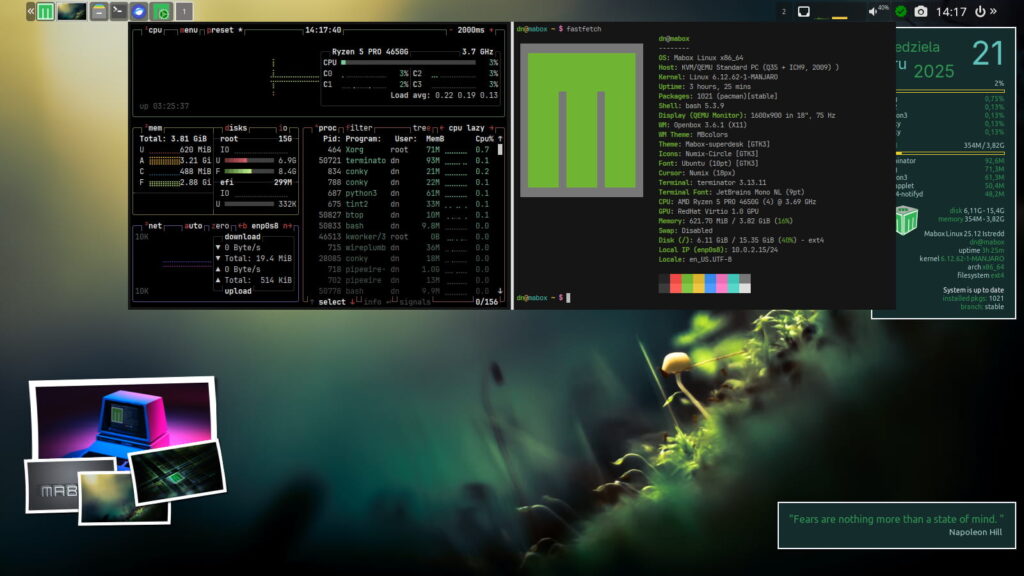
The terminal is available under W-t. But here we’ll discuss its more interesting variant – the F12 key.
F12 acts as a switch that shows and hides the terminal.
If you want to change the location and size of the terminal, you can do so using standard methods:
alt + left-mouse and drag – moves
alt + left-mouse and drag – resizes
To save new geometry, simply press F12.
You can split the terminal because it’s a Terminator:
vertically – C-S-e
horizontally – C-S-o
Use A + Arrows to move focus between divided terminals.
Useful Switches
Finally, here are a few useful switches:
W-d – toggle ShowDesktop
W-c – toggle Conky
W-p – toggle Picom
W-A-b – toggle monitor blanking
That should be enough to get you started with Mabox quickly.
And if that’s not enough, try SuperClick – a fun and fast way to arrange windows. You can find information and a tutorial at: Left Sidepanel -> SuperClick.
Enjoy Mabox and keep tinkering!